Home Assistant is an open smart home platform built for users who value local control, flexible automation, and broad device compatibility. It allows smart home devices from different brands and ecosystems to be managed in one place, making it a strong choice for users who want more control over their home safety setup.
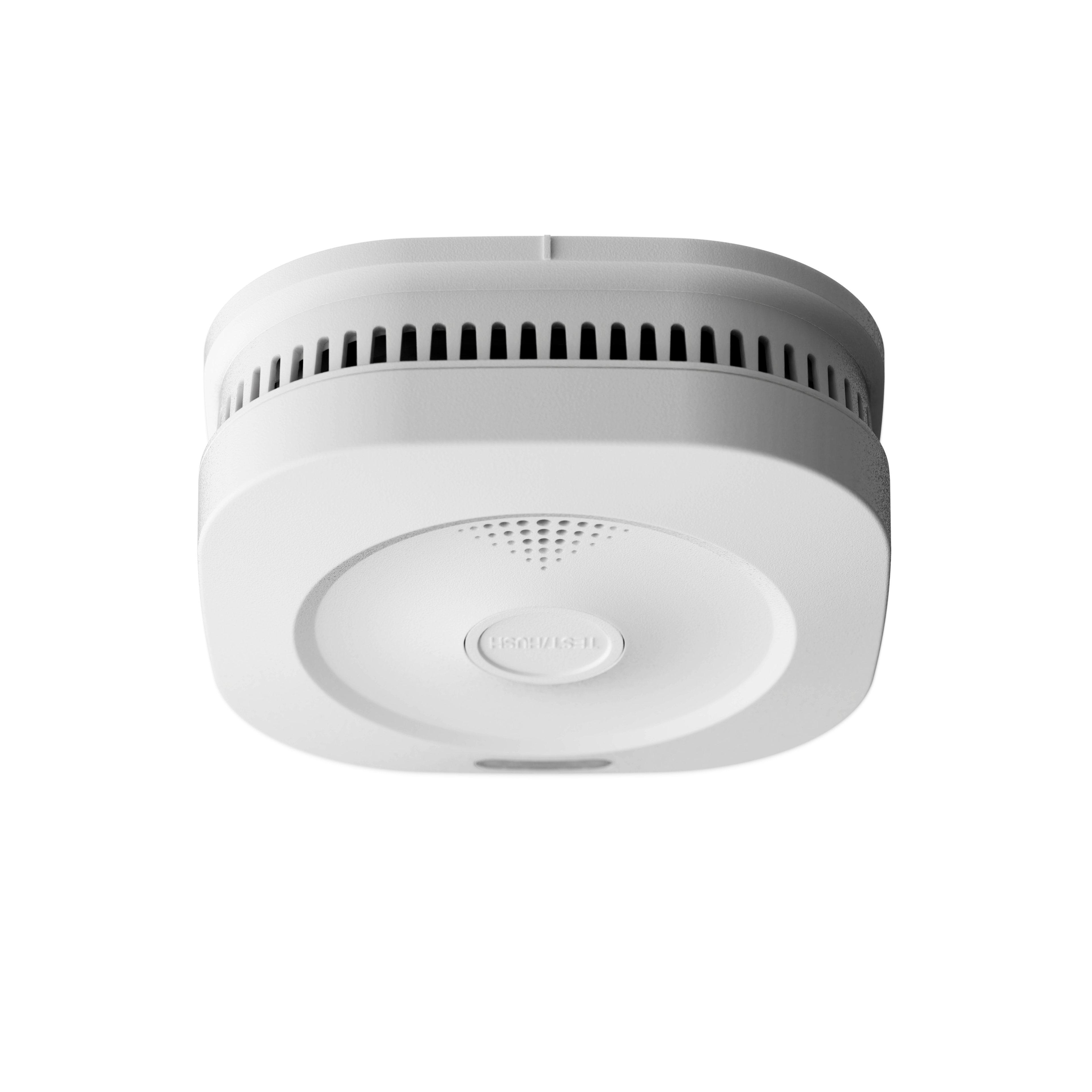
Sensereo is officially part of the Works with Home Assistant program, and Sensereo MS-1 is a Works with Home Assistant Matter smoke alarm. This means MS-1 is designed to work smoothly with Home Assistant and can be added to a Home Assistant smart home setup through Matter over Thread.

Sensereo MS-1 is a Matter over Thread smoke alarm. Once paired with Home Assistant, users can bring smoke alarm status into their Home Assistant dashboard and include it as part of a broader home safety and automation setup.
Before Pairing MS-1 with Home Assistant
Since Sensereo MS-1 uses Matter over Thread, your Home Assistant environment needs to support both Matter and Thread before pairing.
In general, you will need:
- Home Assistant with Matter support enabled.
- The Home Assistant Companion app installed on your phone.
- A Thread Border Router available in your home network.
- The Matter QR code or manual pairing code for your Sensereo MS-1.
Home Assistant users may use different Thread Border Router options depending on their setup. Common options include Home Assistant Yellow, Home Assistant Connect ZBT-1, Home Assistant Connect ZBT-2, Google Nest Hub, Nest Wifi Pro, HomePod mini, HomePod 2nd generation, and supported Apple TV 4K models.
If you are using a Home Assistant-based Thread Border Router, make sure Thread is configured properly before pairing. If you already have an Apple, Google, or other Thread network, check that your phone and Home Assistant setup can access the correct Thread network credentials.
Video Guide: Pair MS-1 with Home Assistant
Watch this video to see how Sensereo MS-1 Matter Smoke Alarm is paired with Home Assistant.
What You Need to Prepare
Before starting setup, make sure these items are ready:
- Your Sensereo MS-1 Matter Smoke Alarm.
- A working Home Assistant instance.
- The Home Assistant Companion app on your phone.
- A configured Matter integration in Home Assistant.
- A Thread Border Router connected to your home network.
- The Matter setup QR code or manual pairing code for MS-1.
For a smoother setup experience, keep MS-1 close to your Thread Border Router during pairing. It is also recommended to complete pairing before mounting the alarm on the ceiling.
What Happens After Pairing
After Sensereo MS-1 is successfully paired with Home Assistant, it will appear as a Matter device in your Home Assistant setup. You can check the device information and use the available smoke alarm status in your smart home system.
Because MS-1 is a Works with Home Assistant product, it is a good fit for users who want to build a more open, flexible, and locally controlled home safety setup.
Depending on your Home Assistant configuration, MS-1 can also be included in dashboards, notifications, and automations related to home safety.
Tips for a Smoother Pairing Experience
- Make sure your Home Assistant system is updated.
- Confirm that the Matter integration is installed and running.
- Check that your Thread Border Router is online.
- Keep MS-1 close to the Thread Border Router during pairing.
- Make sure Bluetooth is enabled on your phone during commissioning.
- Use the Home Assistant Companion app when adding the Matter device.
- If MS-1 was previously paired with another ecosystem, reset it before pairing again.
Troubleshooting
If MS-1 does not appear during setup, or if pairing does not complete, first check whether your Thread Border Router is properly configured. Matter over Thread devices rely on the Thread network during commissioning, so missing or incorrect Thread network credentials can prevent the device from joining successfully.
If pairing still fails, restart the Home Assistant Companion app, confirm the Matter integration status, and try again with MS-1 placed closer to your Thread Border Router.
If the device was previously added to Apple Home, SmartThings, Homey, or another Matter platform, remove it from that platform and reset MS-1 before pairing it with Home Assistant again.
Final Notes
Pairing Sensereo MS-1 with Home Assistant allows you to bring smoke alarm status into a flexible, locally controlled smart home platform. As a Works with Home Assistant Matter smoke alarm, MS-1 is designed to fit naturally into the Home Assistant ecosystem while keeping its core smoke detection function local and reliable.
For the best experience, make sure your Home Assistant setup has a stable Matter integration, a properly configured Thread Border Router, and a reliable home network before pairing MS-1.