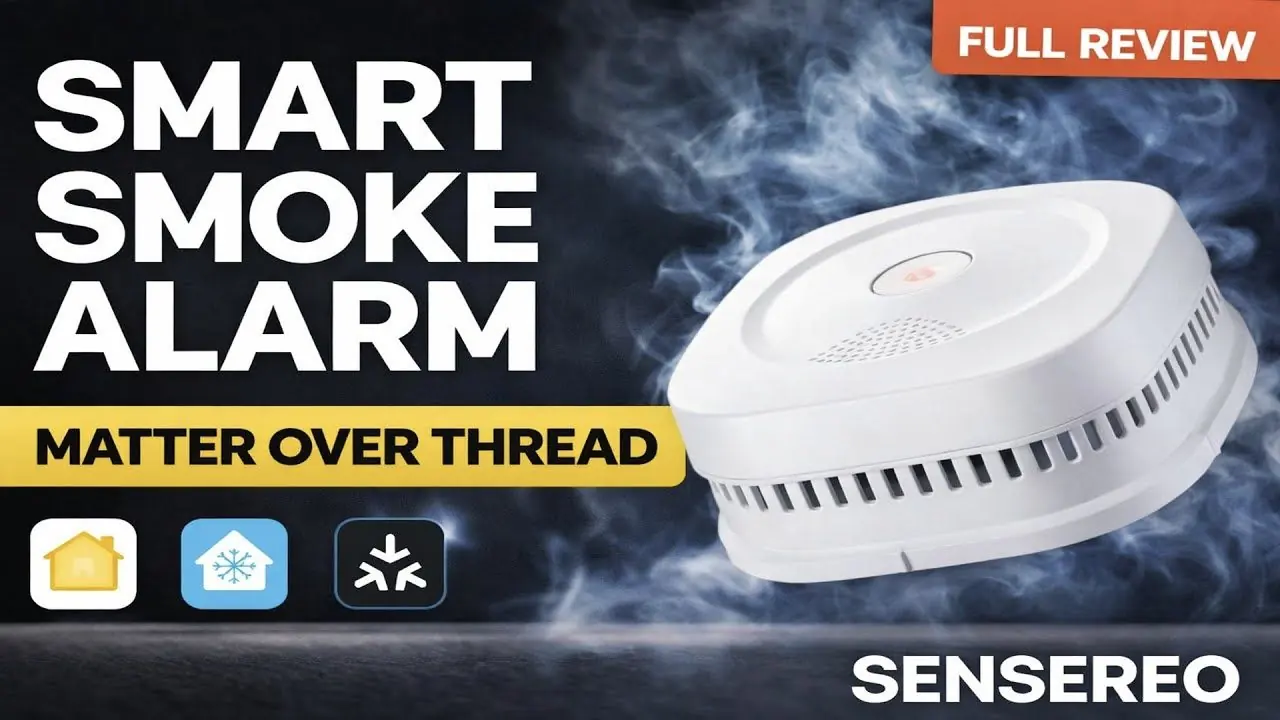
Sensereo MSC-1 is a Matter Smoke and Carbon Monoxide Alarm that can be added to Home Assistant through Matter over Thread. After the device is added to Home Assistant, users may want to receive phone notifications when certain alarm states are triggered.
For Android users, Home Assistant should be able to send phone notifications even when the phone is not on the same local network, as long as the Home Assistant mobile app notification function is enabled and the automation is set up correctly.
This guide explains how to enable the notification-related setting in the Home Assistant Android app and how to create a notification automation for MSC-1.
Before You Start
Before setting up the notification automation, make sure:
-
Sensereo MSC-1 has already been added to Home Assistant.
-
The Home Assistant mobile app is installed on your Android phone.
-
Your phone is signed in to the same Home Assistant instance.
-
Notifications are allowed for the Home Assistant app in Android system settings.
-
MSC-1 appears as a device in Home Assistant.
If the MSC-1 device is not visible in Home Assistant yet, finish the Matter pairing process first.
Enable Notification Capability in the Home Assistant Android App
On your Android phone, open the Home Assistant mobile app.
Then check the notification-related setting:
-
Open the Home Assistant app.
-
Go to Settings.
-
Go to Companion App.

-
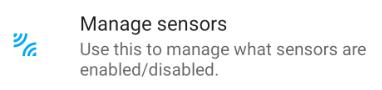
Open Manage Sensors.
-
Find Active notification count.

-
Enable this sensor.

After this is enabled, the Home Assistant app should have notification capability on your phone.
The exact menu names may vary slightly depending on your Home Assistant app version and Android device.
Create a Notification Automation for MSC-1
After enabling the notification setting, you can create an automation for MSC-1 alarm notifications.
You can create this automation from Home Assistant on a computer or from the mobile app. The layout may look slightly different, but the setup logic is similar.
Go to:
Settings -> Automations & scenes -> Create automation -> Create new automation

Choose the MSC-1 Alarm Trigger
In the automation editor, go to the When section.
Then:
-
Click Add trigger.
-
Choose Device.
-
Select the corresponding MSC-1 device.

-
Under Trigger, choose the alarm status you want to use.
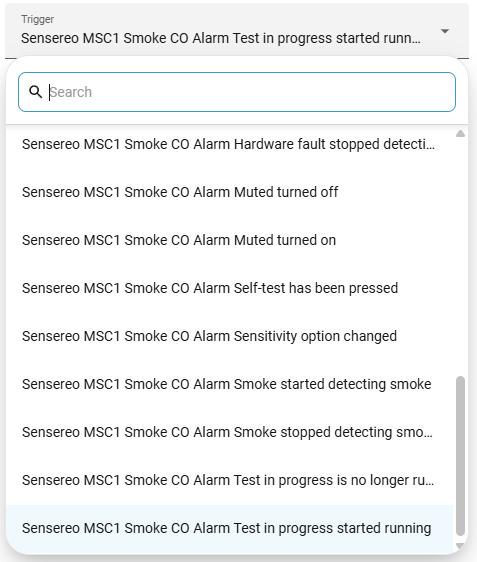
Depending on the available entities and Home Assistant display, the trigger may include options such as:
-
Smoke detected
-
Test alarm mode
-
Other available MSC-1 alarm status options
For example, if you want to receive a notification when the MSC-1 self-test is triggered, choose the corresponding test alarm status if it is available in your Home Assistant setup.
Add the Phone Notification Action
In the automation editor, go to the Then do section.
Then:
-
Click Add action.
-
Choose Send a notification.

-
Select the phone or notification target.
-
Fill in the Title field.
-
Fill in the Message field.
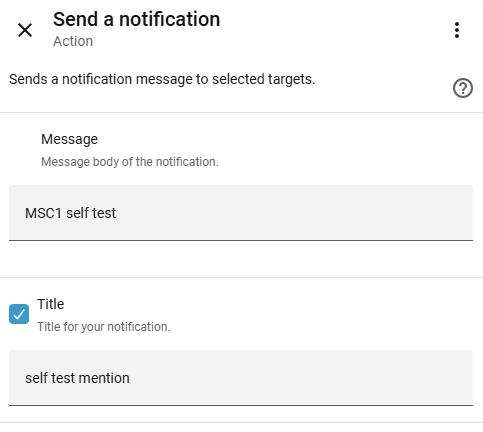
After saving the automation, Home Assistant should send a phone notification when the selected MSC-1 alarm status is triggered.

Example Notification Result
After the automation is saved, you can test whether the notification works by triggering the selected MSC-1 status.
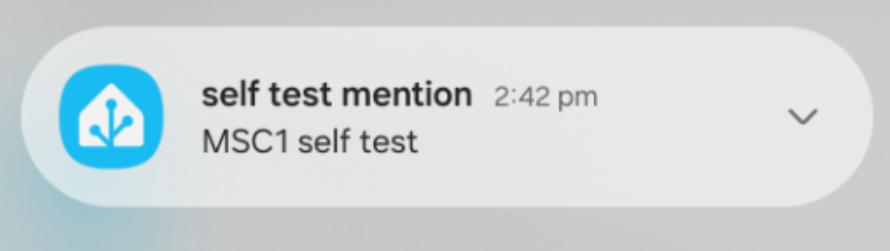
For example, after setting up a notification automation for the MSC-1 self-test status, the phone can receive a Home Assistant notification banner when the self-test status is triggered.
This confirms that the Home Assistant automation and phone notification path are working.
Check Notification Channels on Android
Some Android users may also need to check notification channels in the Home Assistant Companion App.
You can check this path:
Settings > Companion App > Notification Channels
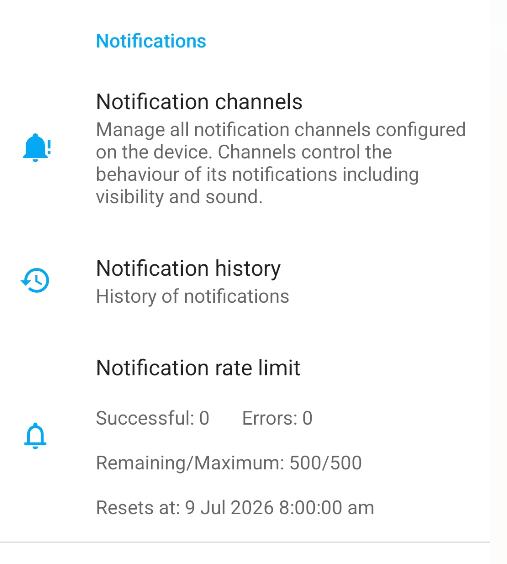
In this section, you may see notification channel options related to the Home Assistant Android app. On some devices, Google Play-related notification services may also appear.
The exact options may vary depending on the Android phone model, system version, and Home Assistant Companion App version.
If notifications do not appear, also check the Android system notification settings for the Home Assistant app and make sure notifications are allowed.