Many households do not live in a single app. One person prefers Apple Home, another uses Google Home or Alexa, and someone else wants Home Assistant or Homey for automations. Matter’s multi-admin (also called multi-fabric) feature is meant for that situation: one device can join more than one ecosystem at the same time.
This guide explains how sharing works, where to generate a new pairing code in each major app and the mistakes that usually cause setup to fail.
App menus change. The paths below reflect current public documentation and may vary by app version, phone platform, and firmware. Confirm the labels you see in the app you are using.
-
How Matter sharing works
-
First setup code versus a share code
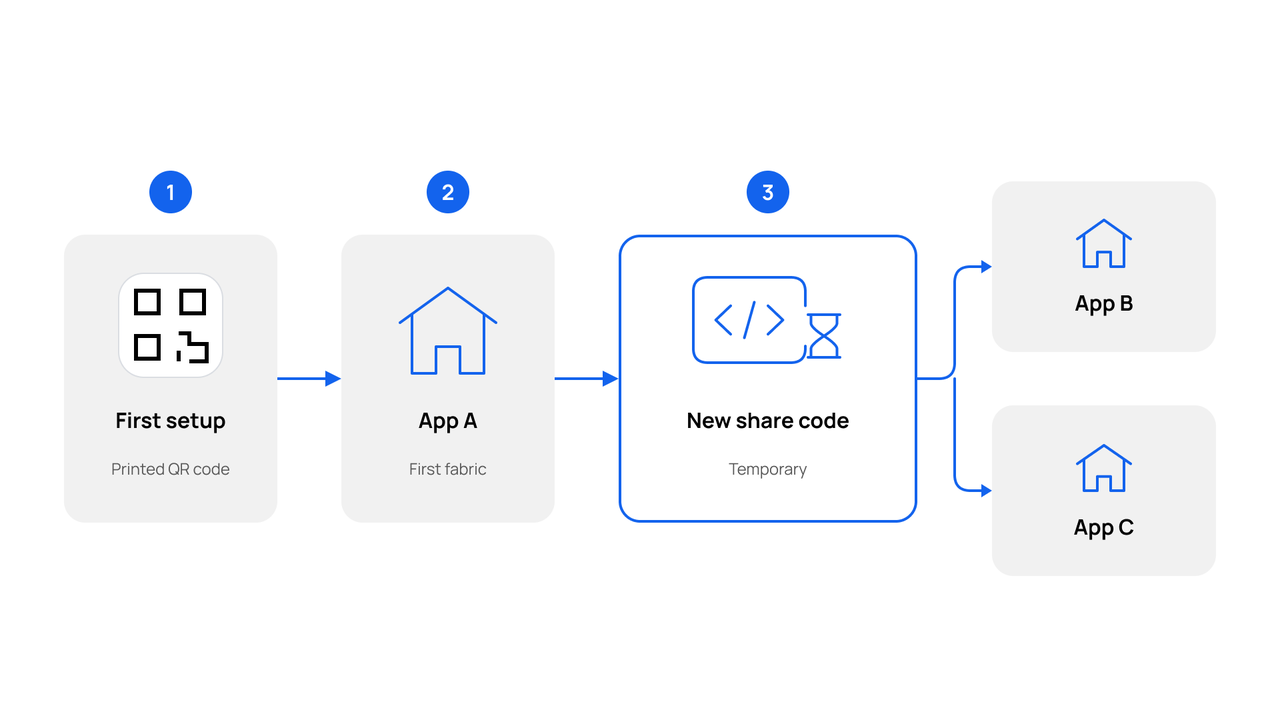
When you unbox a Matter device, the printed Matter QR code or numeric setup code on the device, packaging, or insert is typically used for the first commissioning—the first time the device joins a Matter fabric. The common app-share flow in this article should use a newly generated share code from an app that already has the device. Only use the original setup code when the manufacturer explicitly supports that method. Amazon’s developer documentation describes two approaches: the required method generates a new, temporary share code in the current app; an optional method, supported only when both the device and the current controller implement it, can reuse the original QR or numeric code after a commissioning window is opened.
To add a second (or third) ecosystem:
-
Open the ecosystem app the device has already joined.
-
Open the device details page, then go to Settings or the related page from there.
-
Find the Share device or Turn on pairing / commissioning window control.
-
Tap it and follow the in-app prompts to get a new temporary setup code.
-
Open the destination ecosystem app and use that setup information to commission the device with Matter.
-
When commissioning finishes, the device should appear and show its status in both apps.
Do not use the manufacturer’s reset / re-commissioning steps just to open a pairing window for sharing. That typically disconnects the device from the first ecosystem and causes the share to fail.
If the device is a low-power Matter over Thread device that supports LIT, wake it first; otherwise the share pairing window may not open. Follow the product manual. On Sensereo products whose manual and firmware support this step, use the Test/Hush button to trigger a Test alarm, as described in that product’s manual. This is a product- and firmware-verified operating note, not a claim that every Sensereo model or firmware is LIT, or that a self-test always opens a sufficient radio window for sharing.
-
Each ecosystem is its own fabric
In Matter, each controller ecosystem has its own fabric. Sharing means adding the same physical device to another fabric. The Matter specification describes that a device should be able to support at least five fabrics at once. Some platform help pages describe a similar five-service limit; the exact ceiling can vary by product. Apple’s Matter support on iOS first provisions the accessory onto the network, then an administrator fabric is set up over IP, so adding a device to Apple Home can occupy more than one fabric slot. Apple’s public support pages do not state a single official fabric-count figure. If an app reports that the device has reached its connection limit, remove an unused fabric first.
Sharing Matter multi-admin is not:
-
Inviting a family member to the same home inside one app
-
A factory reset
-
Each ecosystem needs a supported control method
Each platform needs its supported Matter control method; whether an always-on hardware hub is required depends on the platform and the functions you need. Google’s Matter help is explicit that, for Google Home, you need a Matter-certified hub for each app that will control the device. Apple Support says that on an iPhone using iOS 18 or later, you can add Matter accessories to and control Matter accessories from the Home app without a home hub. With iPhone 15 Pro or iPhone 15 Pro Max and later, you can control Thread-based accessories without a home hub; Apple also notes that Thread-enabled iPhone devices running iOS 18 are able to locally pair and manage Thread accessories, which may require an update from the accessory manufacturer. Apple still recommends setting up a home hub for the best experience. Check each vendor’s current official help rather than assuming every speaker, display, or phone can act as a Matter controller or Thread Border Router.
-
Thread stays where it is
If the device uses Matter over Thread, adding another Matter fabric does not automatically move it onto a different Thread network. Device sharing is a Matter application-layer capability; it does not change the Thread network topology. Keep the Thread network the device is on available, and make sure at least one Border Router that provides connectivity for that network stays online while you share, and afterward. If the home only has the original Border Router, that one must stay online. Another Border Router in the house is not always enough, because it may belong to a different Thread network.
-
Before you start
-
The product is Matter-enabled. Look for the Matter logo on the packaging or in the manufacturer’s documentation. A Thread logo alone does not guarantee Matter.
-
The device already works in at least one Matter ecosystem, or you are ready to commission it there first.
-
Each destination ecosystem needs its supported Matter control method; whether an always-on hardware hub is required depends on the platform and the functions you need. For a Matter over Thread device, a compatible Thread Border Router is required the first time the device joins a Thread network. After that first setup, sharing the device to another Matter ecosystem does not require the destination ecosystem to have its own Thread Border Router, as long as the Thread network the device is on remains available and at least one Border Router that provides connectivity for that network stays online. If the home only has the original Border Router, that one must stay online. Another Border Router in the house is not always enough, because sharing a Matter fabric does not automatically move the device onto another Thread network. One device may provide both Matter controller and Thread Border Router roles. Use each platform’s official help; do not rely on an unofficial model roundup.
-
Your phone needs to be able to run the receiving ecosystem app. Standard Bluetooth Low Energy (BLE) commissioning is typically used only for a device’s first setup. When you share an already commissioned device, the second ecosystem commissions it over the local network (network discovery), not over BLE. Everyday control then uses Wi-Fi or Thread.
-
Where possible, keep the phone, hubs, and Wi-Fi or Ethernet devices on the same home LAN. Avoid guest networks and client isolation. Matter, including Matter over Thread, uses local IPv6 and discovery traffic; you do not need an IPv6 internet subscription.
-
Keep the device, the app that already controls it, and the receiving controller online until setup finishes.
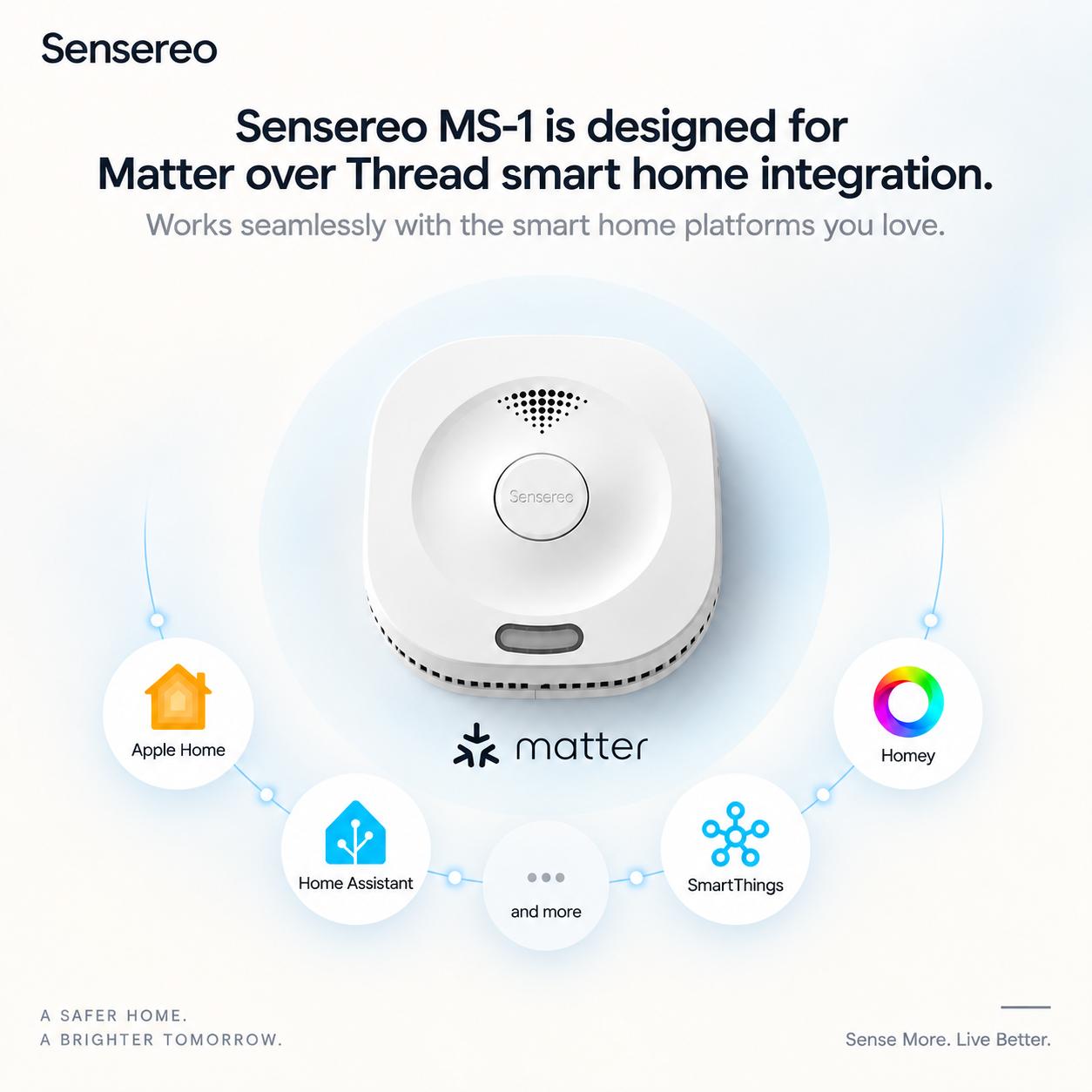
Sensereo MS-1, MSC-1, and MS-1 Interlink are Matter over Thread examples. Once commissioned in a compatible ecosystem, they can be shared to other compatible Matter fabrics the same way other Matter devices are shared. In a suitable Matter / Thread environment, Sensereo products work with Apple Home, the Samsung SmartThings ecosystem, Homey, and Home Assistant (Sensereo is officially part of the Works with Home Assistant program) through Matter over Thread. The destination platform must support that device type and the functions you need. “Supports Matter” does not by itself prove that alarm notifications, self-test, battery status, and automations will all work.
-
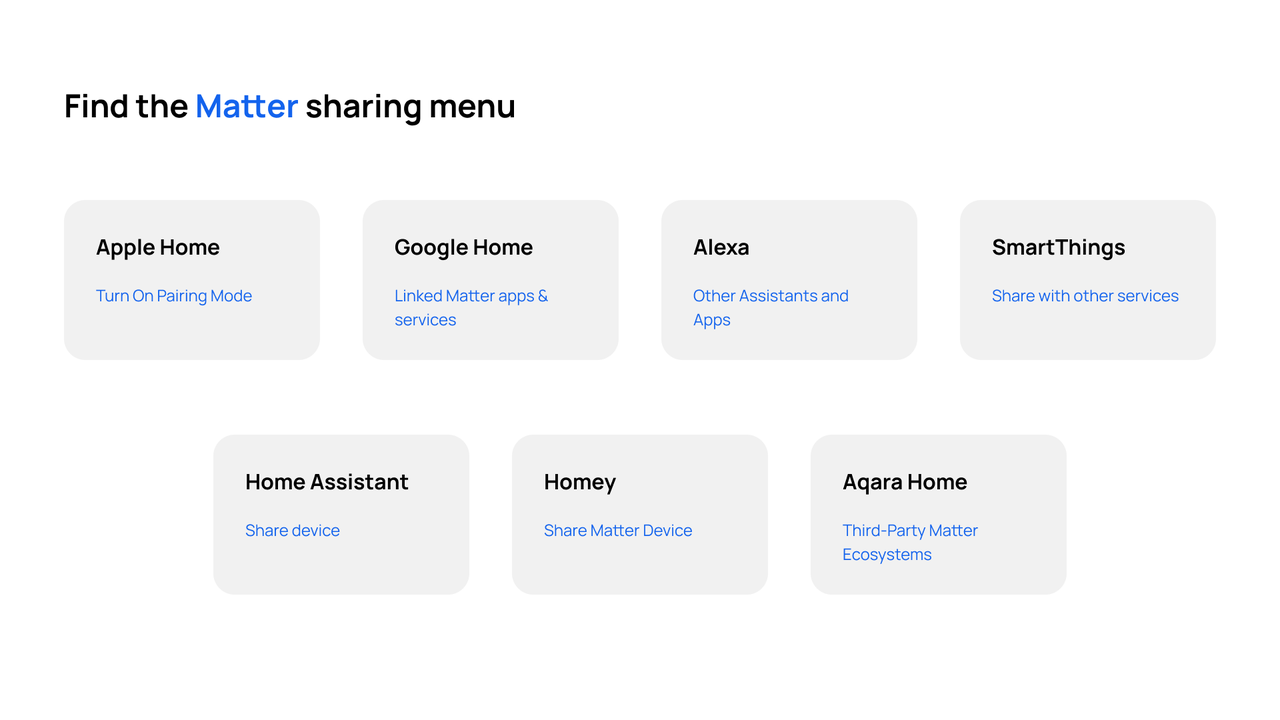
Where to generate a share code
Open the share path in the app that already has the device. Then use the new code in the receiving app.
|
App
|
Where to open a share / pairing window
|
What you usually get
|
|---|---|---|
|
Apple Home
|
Accessory → Accessory Settings (often the gear) → Turn On Pairing Mode → Copy Code
|
A new setup code to copy
|
|
Google Home
|
Home → All devices → touch and hold the tile → Settings or More → Linked Matter apps & services → Link apps & services
|
A listed app handoff, or Use pairing code / Share with QR code
|
|
Amazon Alexa
|
Device settings → Other Assistants and Apps → Add another
|
An 11-digit setup code
|
|
Samsung SmartThings
|
Device → More (⋮) → Share with other services → Share device (or QR / listed service)
|
A sharing QR code and setup code, not the sticker code
|
|
Home Assistant
|
Settings → Connectivity → Matter → Devices → device → Share device → Share device again
|
A QR / sharing code; no hardware button required
|
|
Homey (app v8.4.0+)
|
Device settings → Advanced Settings → Share Matter Device
|
A QR code for the other platform
|
|
Aqara Home (native Matter device)
|
Device page → settings / three dots → Third-Party Matter Ecosystems or Matter → Matter pairing code
|
A generated pairing QR / numeric code
|
|
Aqara Home (hub as Matter bridge)
|
Hub settings → Matter (some hubs also show Add to Apple Home) → generate pairing code
|
The hub’s Matter code, which exposes supported bridged children
|
-
Apple Home
-
Open the Home app and select the accessory.
-
Open Accessory Settings (often the gear icon).
-
Tap Turn On Pairing Mode.
-
When the accessory is ready to connect, tap Copy Code.
-
Enter or paste that code in the receiving ecosystem app promptly.
Follow the in-app prompt and use the code immediately after it is generated. Apple’s own Matter accessory page does not spell out every menu label or a single official timeout.
Apple Support also notes that you can add a Matter accessory previously paired in another app from the Home app’s Add Accessory flow: choose More options, then select the accessory or enter a code.
Sources: Apple Support, Pair and manage your Matter accessories; manufacturer how-tos describing Turn On Pairing Mode.
-
Google Home
From Google’s Matter multi-admin help:
-
Open the Google Home app.
-
Go to Home → All devices, then touch and hold the device tile.
-
Open More or Settings → Linked Matter apps & services.
-
Tap Link apps & services.
-
Choose a listed Matter app (Google notes you typically need that app installed first), or tap Use pairing code / Share with QR code to generate a temporary code.
Google describes these as temporary pairing or QR codes. A TP-Link Matter FAQ additionally says to keep the Google Home pairing-code page open while you finish setup in the second app, and that this Google pairing-code path may expire in about three minutes. That timing is vendor-reported, not a figure published on Google’s help page.
-
Amazon Alexa
From Amazon’s customer help:
-
Open the Alexa app → Devices.
-
Select your Matter device.
-
Open Other Assistants and Apps.
-
Tap Add another.
-
Copy the generated 11-digit pairing code. Amazon states this code is valid for 15 minutes.
-
Enter it in the other assistant or ecosystem app.
The common app-share flow in this article should use that newly generated share code. Only use the original setup code on the device or packaging when the manufacturer explicitly supports that method.
Sources: Amazon Customer Service; Silicon Labs multi-controller documentation describes the same menu path.
-
Samsung SmartThings
From SmartThings Support:
-
Open the SmartThings app and select the Matter device.
-
Tap More (⋮) and choose Share with other services. Already connected services appear in that view.
-
Choose Share device. On some screens you may instead see a listed service to share with, or a QR option.
-
The app generates a QR code and setup code made for sharing—not the sticker on the device.
-
In the other app, scan that QR code or enter the setup code.
Silicon Labs documents a similar fork: tap Share on a listed target service, or use the QR code / 11-digit pairing code.
SmartThings’ Matter article also describes a device as connectable to five different services. If you hit a limit, remove an unused service first and confirm the current wording in the app.
-
Home Assistant
Home Assistant documents both directions. Adding Matter devices must be done in the Home Assistant Companion app, not a web browser.
Share into Home Assistant (the device already works in Apple Home, Google Home, or another controller):
-
Open the Companion app.
-
Go to Settings → Connectivity → Matter.
-
Tap Add device.
-
Select Yes. It’s already in use., then pick the controller it is already connected to.
-
Follow the on-screen prompts.
Share from Home Assistant to another platform:
-
Go to Settings → Connectivity → Matter → Devices.
-
Open the device.
-
Tap Share device, then Share device again. You do not need to press a hardware button on the device.
-
Scan the QR code or enter the sharing code in the other app. On some phones the Companion app may offer Add to Apple Home (iOS) or Share with app (Android, full Play Store app).
-
To confirm, open the three-dots menu next to Share device and choose Manage fabrics. The new platform should appear in the list—for example, Google LLC after sharing with Google Home.
Sensereo smoke and smoke/CO alarms that are part of the Works with Home Assistant program follow this same Matter sharing path when they are already on your Home Assistant Matter fabric.
Source: Home Assistant Matter integration.
-
Homey
From Homey’s app release notes (v8.4.0 and later, iOS and Android):
-
Open the device in the Homey app.
-
Go to Advanced Settings → Share Matter Device.
-
Scan the QR code in the other platform’s add-device flow.
Homey is a platform for bringing devices from different brands together and building automations, including Homey Flow. Sensereo products work with Homey through Matter in a compatible setup.
Source: What’s new in the Homey app (v8.4.0).
-
Aqara
Aqara setups fall into two different cases. A Zigbee device does not become a native Matter end device just because it sits behind a Matter-capable Aqara hub.
-
Native Matter devices in Aqara Home
For a native Matter—or Matter-capable dual-protocol—device that already works in Aqara Home:
-
Open the device page in the Aqara Home app.
-
Open settings (often the three-dot menu) and look for Third-Party Matter Ecosystems or a Matter option.
-
Generate the Matter pairing code (QR and/or numeric code).
-
Use that generated share code in the other ecosystem. Only use the printed sticker code from first-time setup when the manufacturer explicitly supports that method.
Aqara’s dual-protocol product guides recommend setting the device up in Aqara Home first, then sharing via Third-Party Matter Ecosystems, if you want access to Aqara-specific features. Adding the device to a third-party app first by scanning only the code on the device itself may leave you with more basic Matter functions in that other app.
Exact submenu names can vary slightly by device and app version. If you do not see “Third-Party Matter Ecosystems,” look for Matter pairing or sharing on the device settings page.
-
How to use the share code in the receiving app
The receiving side is usually the same as adding any Matter device, except you use the newly generated share code. Only use the original QR code on the device or in the manual when the manufacturer explicitly supports that method.
-
Open the receiving ecosystem app and start Add device or Add accessory.
-
Choose the Matter option if the app asks for a device type.
-
Scan the temporary QR code, or choose setup without a QR code and enter the numeric code.
-
If the code is displayed on the same phone you are using to scan, use manual entry or show the QR code on another screen.
-
Complete room naming and any extra prompts.
-
Confirm the device appears and responds in both apps.
Platform-specific notes:
-
Home Assistant: use Yes. It’s already in use. in the Companion app, as above. A desktop browser cannot commission Matter devices.
-
Apple Home: if Add Accessory does not pick the device up automatically, use More options, then enter the code if needed.
-
Google Home: you can sometimes hand the device off directly from Google’s Link apps & services list instead of copying a code.
-
Finish before the code expires. If it expires, generate one new code and complete that attempt before opening another sharing session. Do not create unused codes in several apps at once.
Google notes that once a device is shared, you can control it from more than one platform, and the device status stays in sync: for example, turning a light off in one app should then show as off in the other.
-
Common questions
I scanned the sticker QR code again and nothing happened.
The common app-share flow in this article should use a newly generated share code from an app that already has the device. Only use the original setup code when the manufacturer explicitly supports that method.
The new code expired.
Share codes are short-lived. Follow the in-app prompt and use the code immediately after it is generated. Amazon documents 15 minutes for Alexa’s 11-digit code. A TP-Link FAQ reports about three minutes for Google Home’s pairing-code path. Generate a fresh code and try again promptly. For Google’s numeric-code path, vendor guidance is to keep that page open.
The share / pairing window will not open on a low-power device.
For a low-power Matter over Thread device that supports LIT, wake the device first; otherwise the share pairing window may not open. Follow the wake method in the product manual. On Sensereo products whose manual and firmware support this step, use the Test/Hush button to trigger a Test alarm, as described in that product’s manual, then open the share window from the ecosystem app that already has the device. This is a product- and firmware-verified operating note, not a claim that every Sensereo model or firmware is LIT, or that a self-test always opens a sufficient radio window for sharing.
The second app cannot find a hub, or says a border router is required.
Each destination ecosystem still needs its supported Matter control method, and the phone, hubs or other controllers, and device should be able to reach one another on the local network. If an app cannot find a hub, check that platform’s official Matter help or Q&A for which devices can act as its controller—do not assume a hub already in the house covers every ecosystem. For a Matter over Thread device that already joined Thread in the first ecosystem, sharing typically does not require the destination ecosystem to have its own Thread Border Router, as long as the Thread network the device is on remains available and at least one Border Router that provides connectivity for that network stays online. If the home only has the original Border Router, that one must stay online. Another Border Router in the house is not always enough, because it may belong to a different Thread network. If an app still says a border router is required, confirm that a Border Router for the device’s Thread network is on, then check that platform’s help.
I shared the device, but it dropped offline in one app.
For Thread devices, confirm that the Thread network the device is on is still available, and that at least one Border Router providing connectivity for that network is online. If the home only has the original Border Router, that one must stay online. Sharing a fabric is not the same as migrating Thread networks, so another Border Router in the house is not always enough if it belongs to a different Thread network. Also check that the receiving controller is on the same local network the device can reach.
If I remove the device from one app, do the others disappear?
Removing one fabric or platform connection is not a factory reset. Other fabrics should remain. Automations in the app you removed will stop. Home Assistant lets you review and remove individual fabrics under Manage fabrics.
-
A note on Sensereo alarms
Sensereo MS-1 (smoke), MSC-1 (smoke and carbon monoxide), and MS-1 Interlink all use Matter over Thread to connect to compatible smart home ecosystems. After the first commissioning, you can share them across those ecosystems with the same multi-admin steps in this article, provided each destination supports that device type and the functions you need, has a suitable Matter control method, and the Thread network the device is on remains available with at least one Border Router that provides connectivity for that network. “Supports Matter” does not by itself prove that alarm notifications, self-test, battery status, and automations will all work.
-
Closing
Matter multi-admin is useful when a household—or a single person—wants the same device in more than one app. The reliable pattern is always the same: commission once, then open a short pairing window from an app that already works and use a newly generated share code—not a factory reset. Only use the original setup code when the manufacturer explicitly supports that method. Keep each ecosystem’s supported Matter control method available, and keep the Thread network the device is on available with at least one Border Router for that network online.
If a menu you see does not match these steps, follow the in-app Matter sharing option and that vendor’s current help article. Those labels move more often than the underlying idea.
-
Sources for editors
-
Google Nest Help, Matter multi-admin: https://support.google.com/googlenest/answer/13127223
-
Home Assistant Matter integration: https://www.home-assistant.io/integrations/matter/
-
Homey app v8.4.0 news: https://homey.app/en-us/news/homey-app-v8-4-0/
-
Aqara Help Center, Troubleshooting Matter Devices with Aqara: https://store-support.aqara.com/blogs/guide/troubleshooting-matter-devices-with-aqara
-
Apple Support, Pair and manage your Matter accessories: https://support.apple.com/en-us/102135
-
Amazon Customer Service, Alexa Matter device to another voice assistant: https://www.amazon.com/gp/help/customer/display.html?nodeId=T6iLWTtbZygaBJnQhg
-
SmartThings Support, SmartThings x Matter Integration: https://support.smartthings.com/hc/en-us/articles/11219700390804-SmartThings-x-Matter-Integration
-
Silicon Labs, Multicontroller ecosystem: https://docs.silabs.com/matter/latest/matter-ecosystems/multicontroller-ecosystem
-
TP-Link FAQ 3573 (Google pairing-code timing and keep-page-open note): https://www.tp-link.com/us/support/faq/3573/