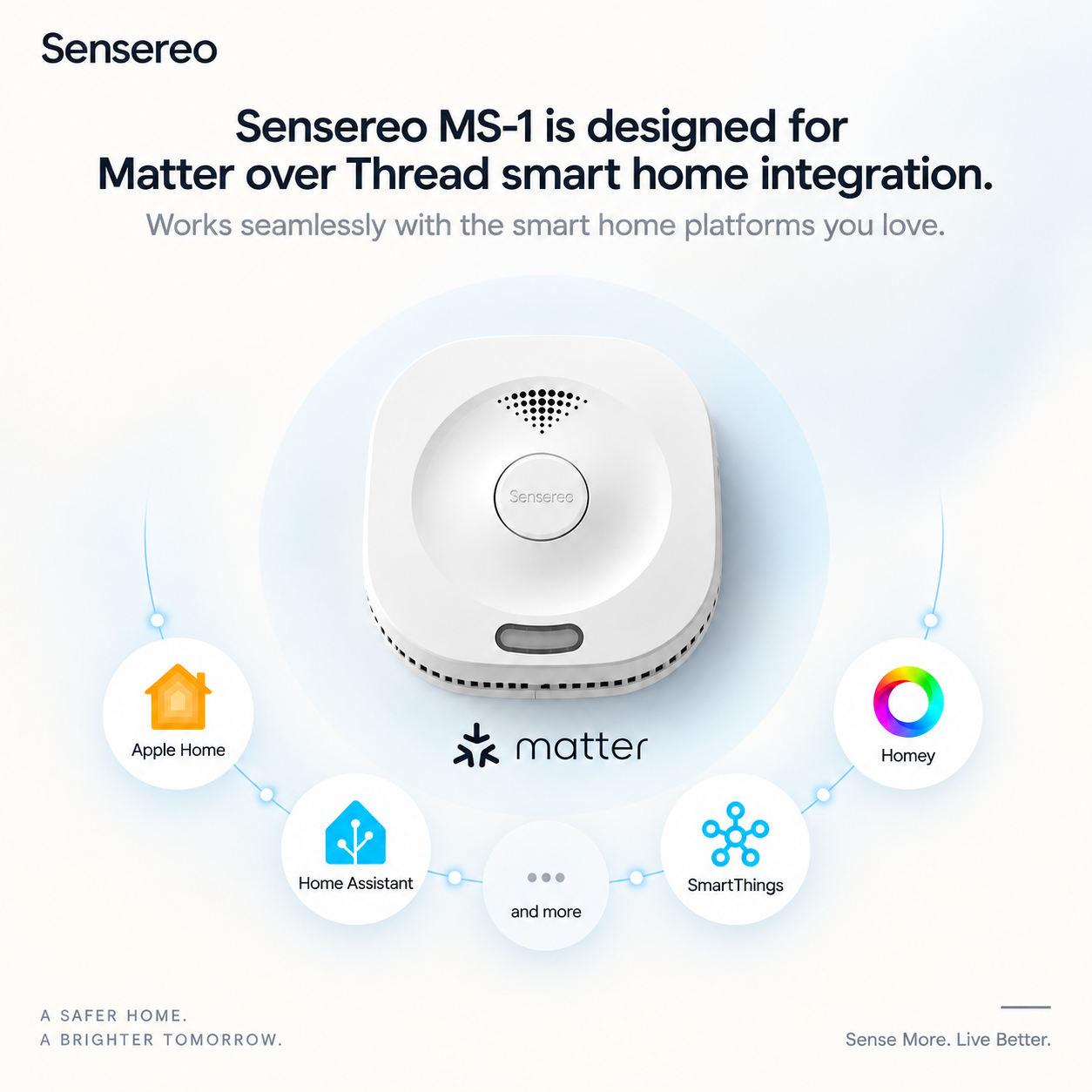
Before setting up your Sensereo MSC-1 Matter Smoke and Carbon Monoxide Alarm, you may need to open the battery cover, check the battery compartment, and power on the device correctly.
This guide combines two short video tutorials to help you safely open the MSC-1 battery cover and turn on the alarm before pairing it with a Matter-compatible smart home platform.
Video Guide 1: How to Open the MSC-1 Battery Cover
Watch this video to learn how to safely open the battery compartment of the Sensereo MSC-1 Smoke and CO Alarm.
Video Guide 2: How to Turn On MSC-1
Watch this video to learn how to power on the Sensereo MSC-1 and confirm that it is ready for Matter pairing.
Before You Start
Please make sure you have:
- Your Sensereo MSC-1 Matter Smoke and Carbon Monoxide Alarm.
- Access to the rear side of the device.
- A small screwdriver or similar tool if needed to open the battery cover.
- A Matter-compatible smart home app if you plan to pair the device after powering it on.
- A Matter-compatible Thread hub or Thread Border Router if you want to use MSC-1 as a smart device.
For best results, complete power-on and pairing before mounting. After pairing, switch the alarm OFF before installation; the alarm will switch ON automatically once locked onto the ceiling or wall plate. Alternatively, you may leave the rear switch in the ON position before mounting.
In this case, the switch tab is designed to lock into a fixed ON state when the alarm is installed onto the mounting plate. This is normal and helps ensure the alarm remains continuously powered for long-term operation. When the battery needs to be replaced, simply remove the alarm from the mounting plate and replace the battery directly.
What to Do After Turning On MSC-1
Once the MSC-1 is powered on and the green LED is flashing, you can add it to your smart home app.
- Open your preferred smart home app, such as Apple Home, Samsung SmartThings, Home Assistant, or Homey.
- Choose Add Device, Add Accessory, or a similar option.
- Select Matter device if prompted.
- Scan the Matter QR code on the MSC-1 or in the product materials.
- Follow the in-app instructions to complete pairing.
If you only want to use the MSC-1 as a standalone smoke and carbon monoxide alarm, you can still turn it on and use its local detection and alarm functions without pairing it to a smart home platform.
Troubleshooting Tips
If the MSC-1 does not power on or does not appear ready for pairing, try the following:
- Make sure the battery cover is closed properly.
- Confirm that the battery is installed correctly.
- Check that the rear power switch is fully toggled to the ON position.
- Wait for the 60-second CO sensor initialization countdown to complete.
- Make sure your Matter controller and Thread Border Router are powered on and nearby.
- If the device was previously paired with another platform, reset the MSC-1 before pairing it again.
Final Notes
Opening the battery cover and turning on the Sensereo MSC-1 correctly are important first steps before installation and Matter pairing.
Once the device is powered on, the green LED flashes, and the front display shows 0000, your MSC-1 is ready to protect your home and connect to your smart home ecosystem.
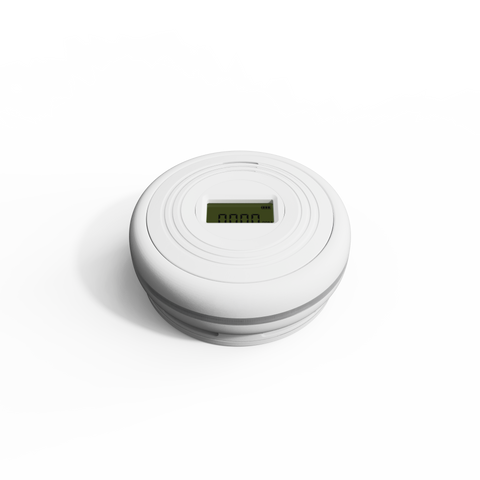
Sensereo MSC-1